
I sighed as I clicked through yet another menu in Google Docs to italicize text. If only there were a faster way…
Enter Markdown in Google Docs support. For those of you who’ve tapped into the quick-formatting magic of Markdown on platforms like Notion, AnyType, or WordPress, you’ll be thrilled to know that this plain text syntax superhero has made its way into Docs. Plain text is unformatted text readable by humans and computer software.
| Plain Text | unformatted text readable by humans and computer software. |
| Syntax | rules that define the combinations of Markdown symbols or characters that can be used to structure and format text documents. |
For the uninitiated, imagine being able to format text in Google Docs as swiftly as typing an email. Instead of diving into menus or clicking buttons, Markdown lets you use simple characters to define your formatting. Want italics? Surround your text with asterisks. Need a header? Start your line with a hash (#). The beauty is in its simplicity, transforming your keystrokes into beautifully formatted text in real-time.
When Google Docs first flirted with Markdown, it was a modest affair—basic formatting for lists and checkboxes. But as with all great love stories, things evolved. Today, it covers a broad spectrum of text formatting needs, from bold and italics to headings and links.
Yes, there are critics. Some argue that keyboard shortcuts in Google Docs can also achieve formatting at lightning speeds. However, for the Markdown aficionados among us, the arrival of this familiar syntax in Google Docs is akin to welcoming an old friend. And for those still in the dark? This might be the productivity boost you never knew you needed.
Join me as I delve deeper into how to harness the power of Markdown in Google Docs. Together, we’ll explore the shortcuts, the benefits, and even the limitations. Let’s redefine speed and simplicity in text formatting.
| Key Takeaways |
|---|
| 1. Markdown in Google Docs enables faster text formatting. |
| 2. Markdown in Google Docs supports text styling, lists, and links. |
| 3. Markdown in Google Docs is not fully supported |
Enabling the Markdown Feature
To harness the power of Markdown in Google Docs:
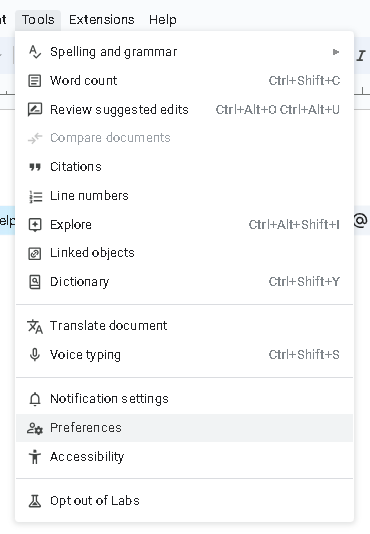
- Open a Google Doc and go to Tools > Preferences in the menu.
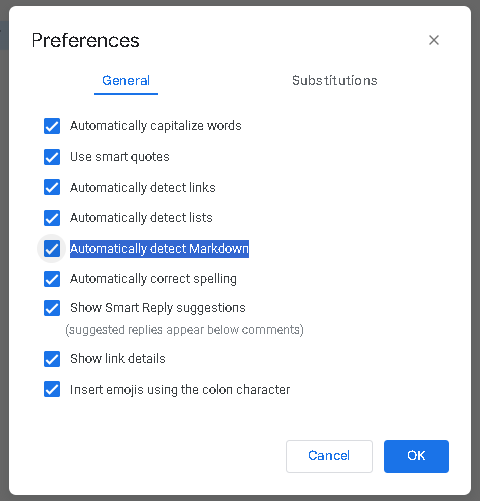
- Check the box for “Automatically detect Markdown.”
With this option enabled, some Markdown elements will automatically convert as you type. For instance, quickly adding links by surrounding text in square brackets and placing the URL in parentheses.
However, if you’re a seasoned Markdown user from other platforms, be prepared for a slight learning curve with Google Docs’ unique implementation. Unlike other editors that display Markdown syntax alongside formatted text, Google Docs auto-formats the text and removes the syntax.
Markdown Formatting Options
Text Styles
- Italicize with asterisks or underscores: *italics* or _italics_
- Bold using two asterisks or underscores: **bold** or __bold__
- Strikethrough with tildes: ~~
text~~
Headings
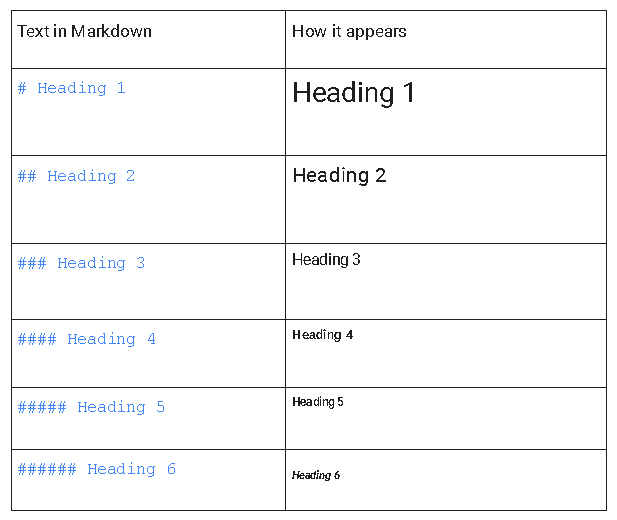
In Google Docs, you can use Markdown to create up to six different heading levels.
To establish a heading:
- Start at the beginning of a paragraph.
- Precede your heading text with number signs (#). The count denotes the heading level. For instance, “##” indicates a level two heading.
- Add your heading text.
Important: Ensure space between the number sign(s) and the heading text exists.
- # H1
- ## H2
- ### H3
Lists
Bulleted List
For bullet points, preface each line with an asterisk (*) followed by a space.
* First item
* Second item
* Third item
Numbered Lists
To make a numbered list, type “1.” followed by a space. The list numbers will auto-increment.
- First item
- Second item
- Nested item
- Third item
Links
To craft a link in Markdown:
- Place the linked text in brackets, e.g., [Google Docs].
- Follow it with the URL in parentheses, e.g., (https://docs.google.com/document/).
Important: Refrain from adding a space between the bracketed text and the URL.
Thus, the format is [Google Doc](https://docs.google.com/document/)
| Text in Markdown | How it appears |
| Open a file in [Google Docs](https://docs.google.com/document/). | Open a file in Google Docs. |
Checkboxes
For checkboxes:
- [ ]Unchecked box
- [x] Checked box
| **Text in Markdown** | How it appears |
| `This text is _italic_.` `This text is *italic*.` | This text is _italic_. |
| `This text is __bold__.` `This text is **bold**.` | This text is **bold**. |
| `This text is ___italic and bold___.` `This text is ***italic and bold***.` | This text is **_italic and bold_**. |
| `This text is in ~strikethrough~.` |
Limitations
While Markdown is a boon for many, especially those familiar with its intricacies, there are limitations within Google Docs:
- Google Docs doesn’t support the full breadth of Markdown syntax. For instance, images, tables, code blocks, and blockquotes are excluded.
- Once Google Docs applies the Markdown formatting, the original syntax is removed, meaning further styling edits using Markdown aren’t possible.
- Pasting pre-existing Markdown text into Docs won’t be auto-detected. Google Docs only identifies and corrects Markdown typed directly into its editor.
Markdown History and Technical Details
John Gruber conceived Markdown in 2004 as a lightweight markup syntax designed to streamline the process of formatting plain text documents. The primary objective was to offer writers an easy-to-read and easy-to-write plain-text format, which would then be converted to structurally valid HTML.
Here’s a closer look at some key characteristics and details about Markdown:
- Simplicity at its Core: At its foundation, Markdown uses simple plain text characters like _, *, and # for formatting. A simple example would be bold to bolden text or # Heading to define a header.
- From Markdown to HTML: Markdown isn’t just about writing in a readable format. Behind the scenes, a Markdown processor translates this plain text markup into HTML. This ensures that the content can be correctly displayed in web browsers. However, it’s worth noting that different processors might have varying extensions beyond the basic Markdown specifications.
- File Extension: Typical Markdown files use the .md or .markdown extension. They are plain text files that can be opened and read in any text editor, whether Notepad on Windows or Vim on Linux.
- Not WYSIWYG: Unlike typical word processors, Markdown is not a “What You See Is What You Get” (WYSIWYG) editor. Instead of seeing the formatted text, you’ll see plain text markup, somewhat akin to how HTML tags work but far simpler.
- Portability is Key: One of the most significant advantages of Markdown is its multi-platform compatibility. Given its plain text nature, Markdown files can easily transition across various operating systems, devices, applications, and even publishing platforms without compatibility issues.
- Growing Popularity: Over time, Markdown has cemented its place in various platforms, from technical documentation and README files on GitHub to posts on Stack Overflow. Its sheer simplicity makes it a preferred choice for many, even in casual writing platforms like Slack or Microsoft Teams.
- Ongoing Evolution: While the core principles of Markdown have remained relatively consistent, its capabilities have expanded. Extensions have been introduced over the years, with new syntax options for elements such as tables, footnotes, and embedded content like videos. However, it’s crucial to remember that the support for these extensions might vary based on the platform or the Markdown processor in use.
Markdown has successfully bridged the gap between the simplicity of plain text and the formatting prowess of more complex markup languages, making it a favorite among writers, developers, and professionals worldwide.
Convert Google Docs to Markdown
Using the “Docs to Markdown” Add-on
Seamlessly transitioning between Google Docs and Markdown is now possible with the “Docs to Markdown” add-on. A creation of a former Google technical writer, this open-source add-on stands as a premier tool to convert a Google Doc to the Markdown format.
It’s an answer to the unique challenge faced by teams who rely on Google Docs for collaboration but need the final content in Markdown format for publishing.
Using the Add-on:
- Installation: First, fetch the “Docs to Markdown” add-on from the Google Marketplace.
- Conversion: Post installation, go to Add-ons > Docs to Markdown > “Convert.” A sidebar will emerge, displaying the converted text.
- Tweaking Settings: Tailor the conversion settings and confirm your selections with the “Markdown” choice.
- Transitioning: Post-conversion, you can migrate this content into any Markdown-compatible platform, from CMS systems to Markdown editors.

Do note the “Docs to Markdown” add-on, while efficient, isn’t always perfect. Some post-conversion tweaking might be necessary. However, as someone who has relied on it for blog content, it’s been a tremendous asset.
Collaborating on Markdown in Google Docs: Alternatives
For those venturing beyond Google Docs’ native Markdown capabilities, some tools bridge Markdown collaboration and Google Drive:
Draft (draftin.com):
- Purpose: Draft, an online application, champions real-time Markdown document collaboration. Every collaborator’s input is immediately visible.
- Google Drive Sync: Post-editing, Draft facilitates direct exporting and storing of the Markdown document to Google Drive.
iA Writer (Android App):
- Purpose: iA Writer, largely an Android app compatible with Chromebooks, allows Markdown file sharing for collaborative browser-based edits.
- Google Drive Sync: Upon concluding online edits, iA Writer integrates with Google Drive, ensuring the collaboratively polished Markdown file is cloud-stored.
In Conclusion
Markdown’s integration into Google Docs might resonate differently with users. Seasoned Markdown users seeking extensive control over their text might find Google’s approach lacking the depth they’re accustomed to. On the other hand, those keen on harnessing Markdown for its quick-formatting prowess will find Google’s version refreshing.
Dive into Google Docs’ Markdown realm, and you’ll likely marvel at the enhanced efficiency. And if it doesn’t resonate? The feature can always be disabled.
Embrace this productivity shift and revel in the streamlined formatting experience!
Glossary
- Markdown: Markup language used for formatting plain text documents. Composed entirely of readable syntax, it’s commonly used for writing on the web.
- Google Docs: A web-based application provided by Google. It allows users to create, edit, and store documents online and access them from any computer with an internet connection.
- Notion, Bear, WordPress: Platforms where you can create, share, and publish content. They all support the use of Markdown for formatting text.
- Keyboard Shortcut: A combination of keys that, when pressed simultaneously, perform a certain function within a software program.
- Syntax: Refers to the rules that define the combinations of Markdown symbols or characters that can be used to structure and format text documents.
- URL: Uniform Resource Locator is the address of a specific webpage or file online.
- HTML: HyperText Markup Language, the standard markup language for documents designed to be displayed in a web browser.
- WYSIWYG: Stands for “What You See Is What You Get”. It is an editor that allows developers to see the end result while the actual interface or document is being created.
- GitHub: A web-based hosting service for version control and collaboration. It’s used to manage and store revisions of projects.
- Stack Overflow: A platform for professional and enthusiast programmers to learn, share their knowledge, and solve complex coding challenges.
- Google Marketplace: The Google Workspace Marketplace is a Google site where users can find and install applications that integrate with Google Workspace productivity tools such as Google Docs and Google Sheets.
- Add-on: An extension to a base software that enhances its functionality. For example, markdown add-ons for Google Docs enable Markdown syntax for faster formatting.
- Google Drive: A cloud-based storage service provided by Google where users can store their files securely and access them from any device.
- Chromebook: A laptop or tablet running on Google’s Chrome OS as its operating system.
- Vim: An advanced text editor open to the public, developed from a command-line interface and as a standalone application in a graphical user interface.
- README files: A document that introduces an open-source project to the public and explains why the project is useful.
- Exporting: The process of transforming data into a format that can be stored in a file, moved from a program, and read by another program.
- Multi-platform compatibility: The ability of software to run on more than one hardware or software platform.
